logo

Item-Edit Name, Description, Prices and Status

1

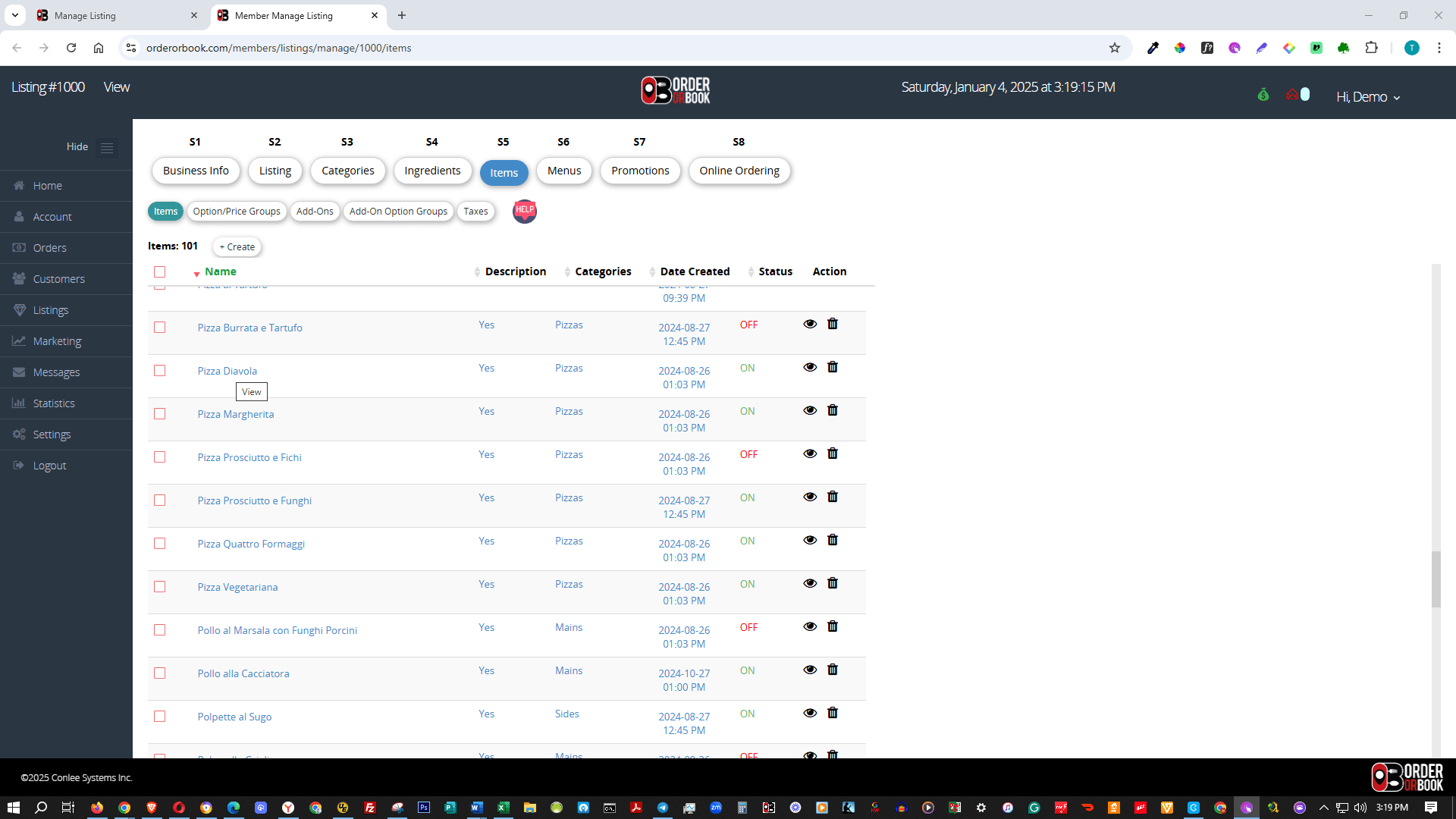
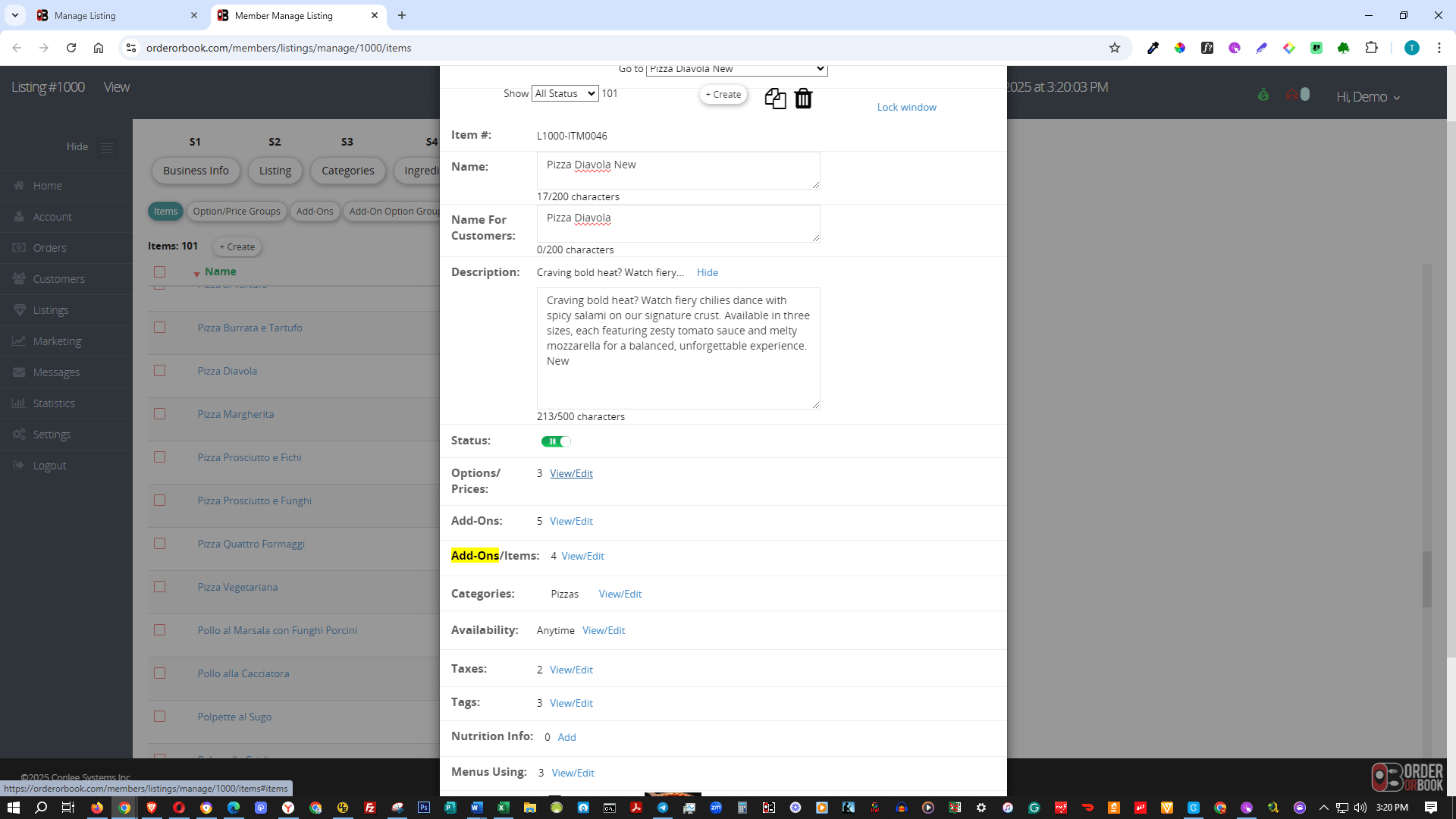
Click on the item you want to edit.

Click on the item you want to edit.
2

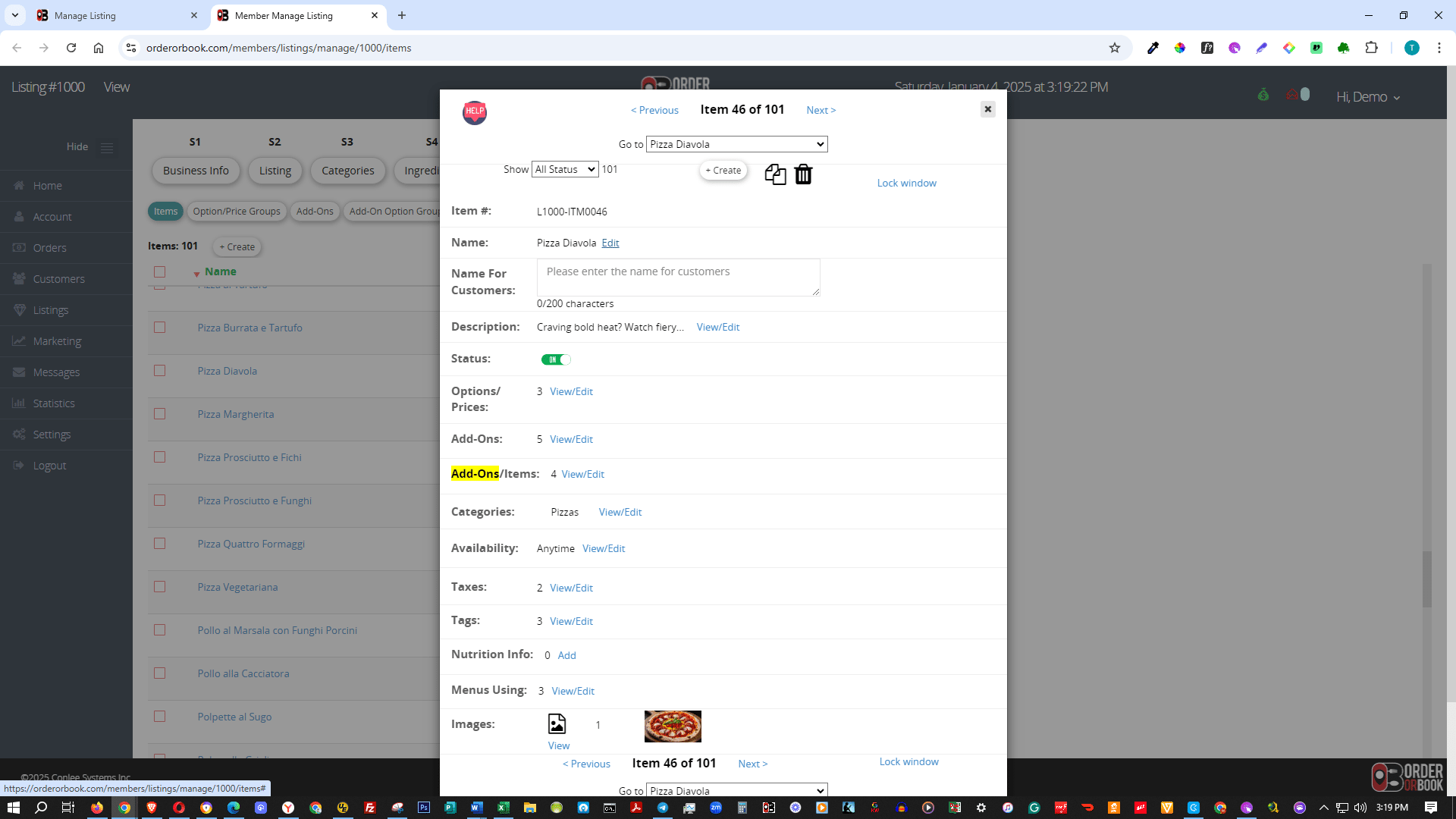
Click the Edit link.

Click the **Edit** link.
3

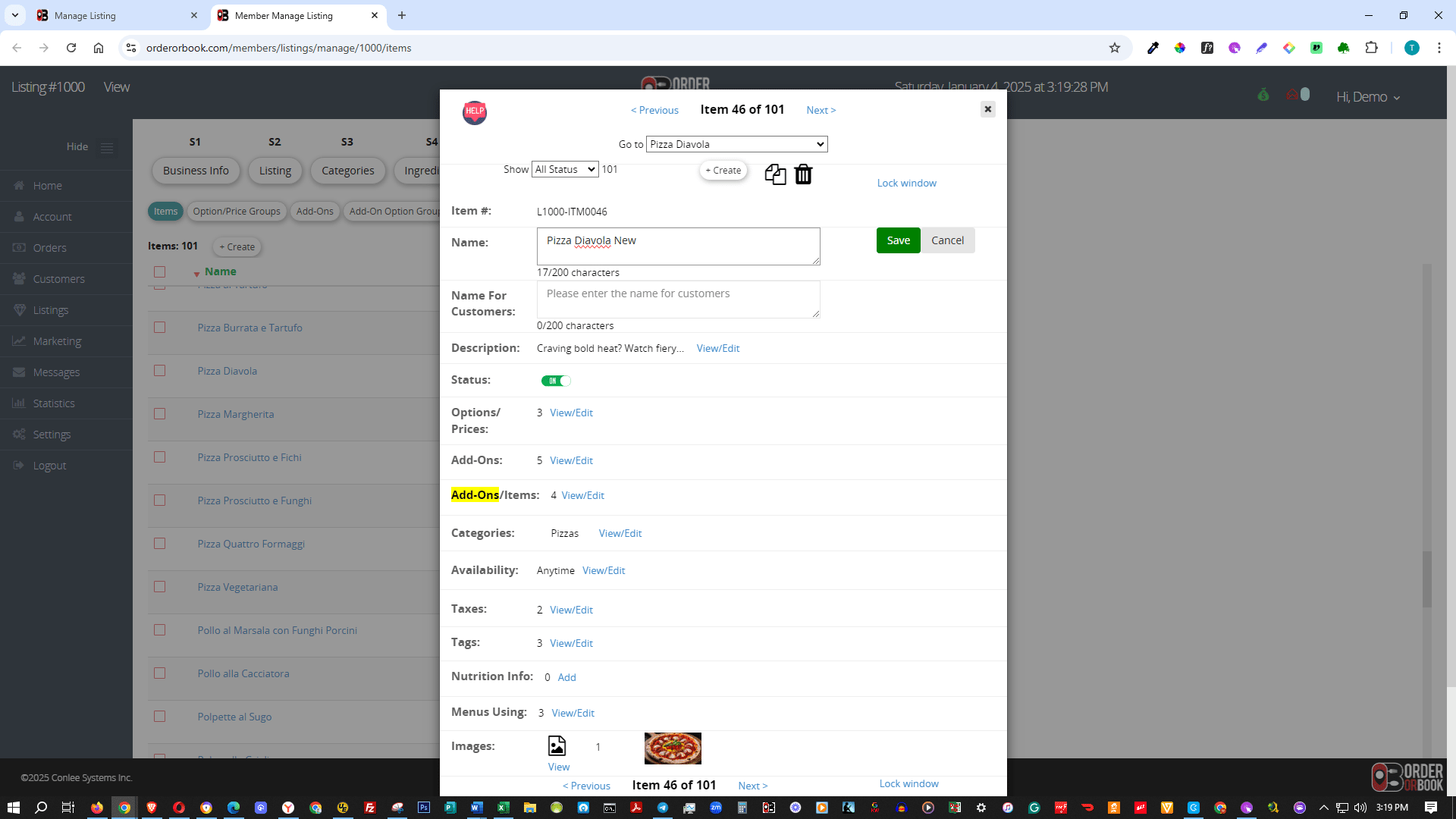
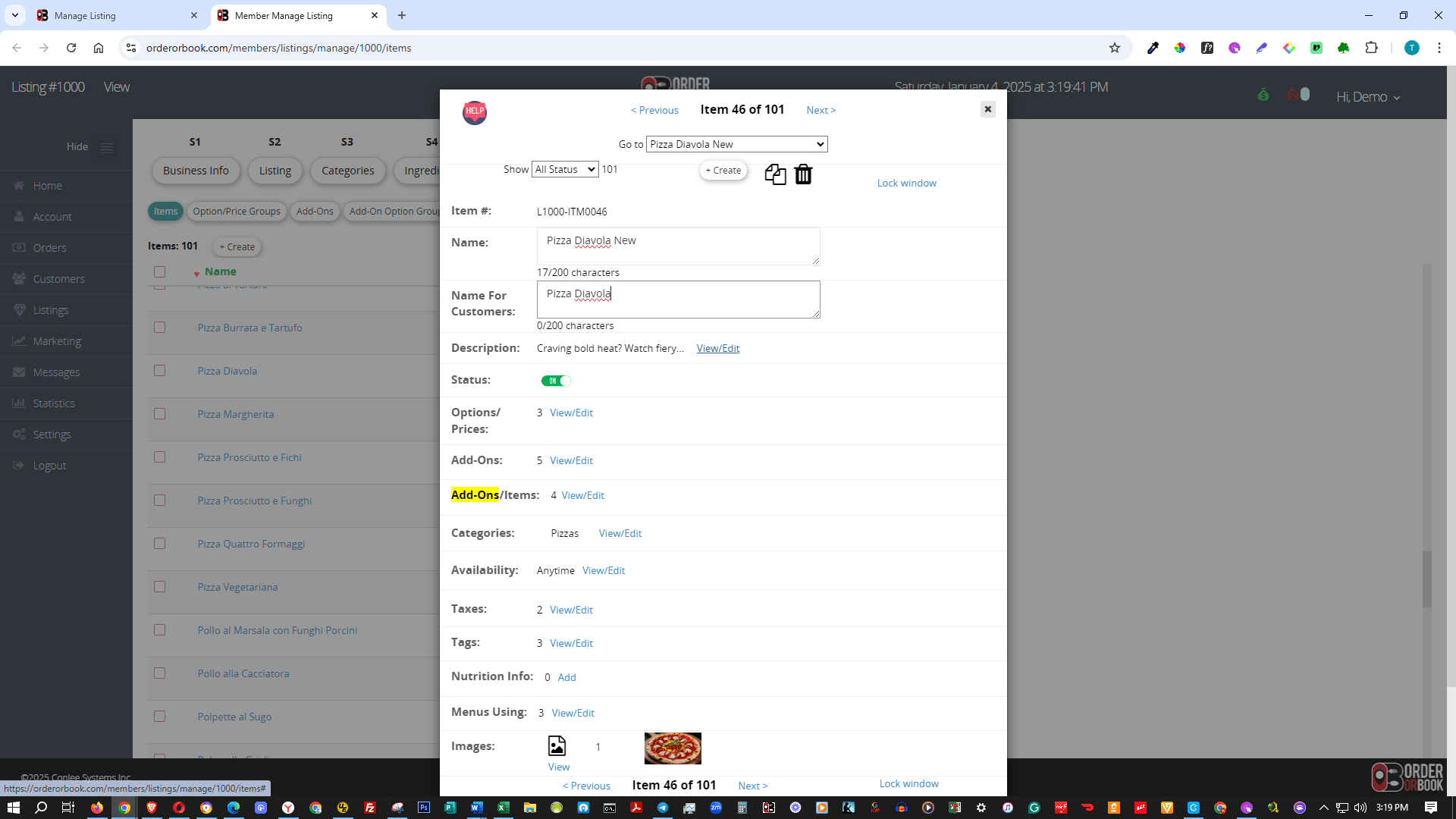
Enter the new name. (If it is similar to another item, describe it in detail. You can provide a different name for customers below.)
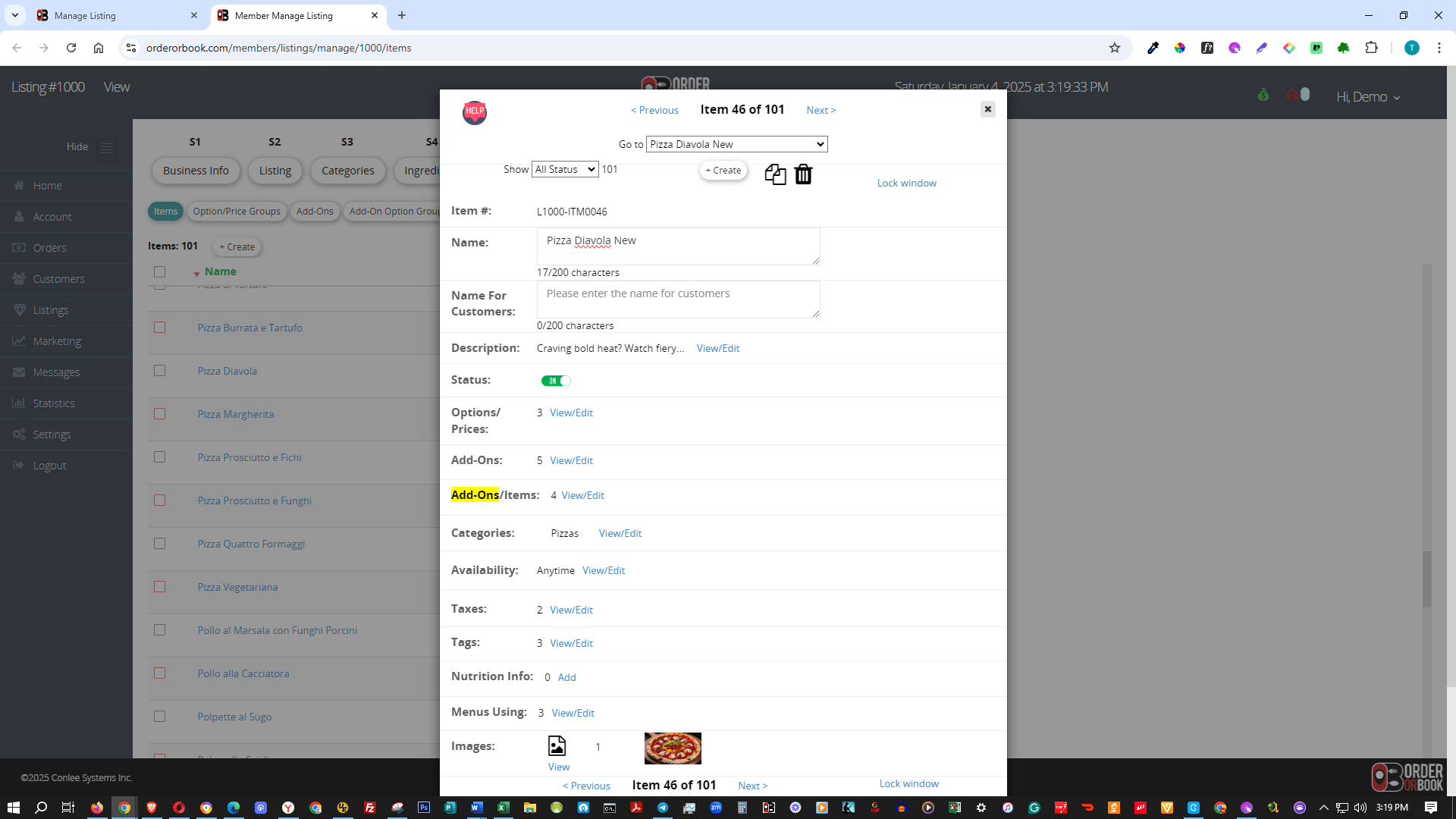
Enter the new name.
(If it is similar to another item, describe it in detail. You can provide a different name for customers below.)
4

Click the Save button.

Click the **Save** button.
5

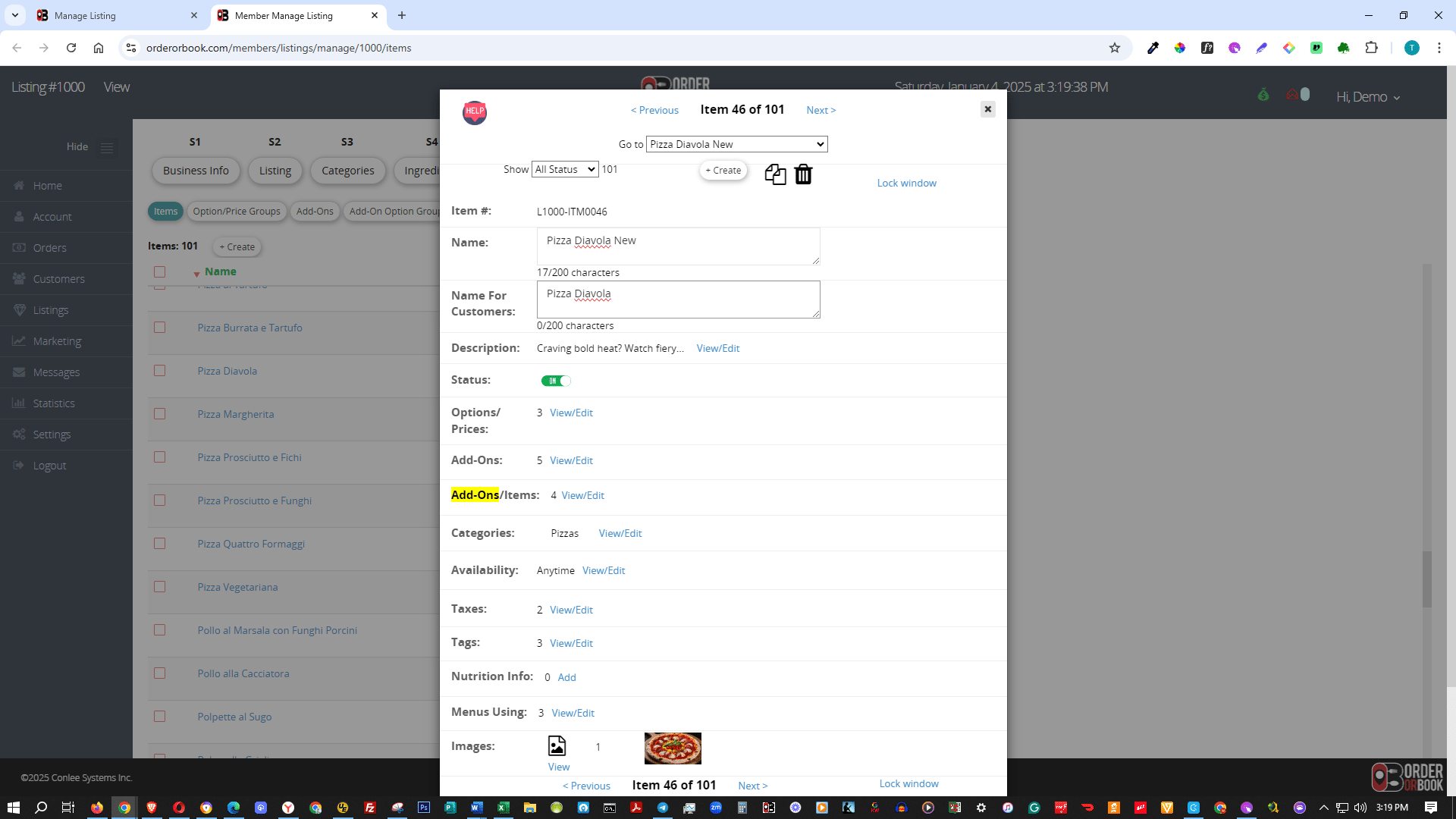
Enter the name to display to customers if it differs from the one above.
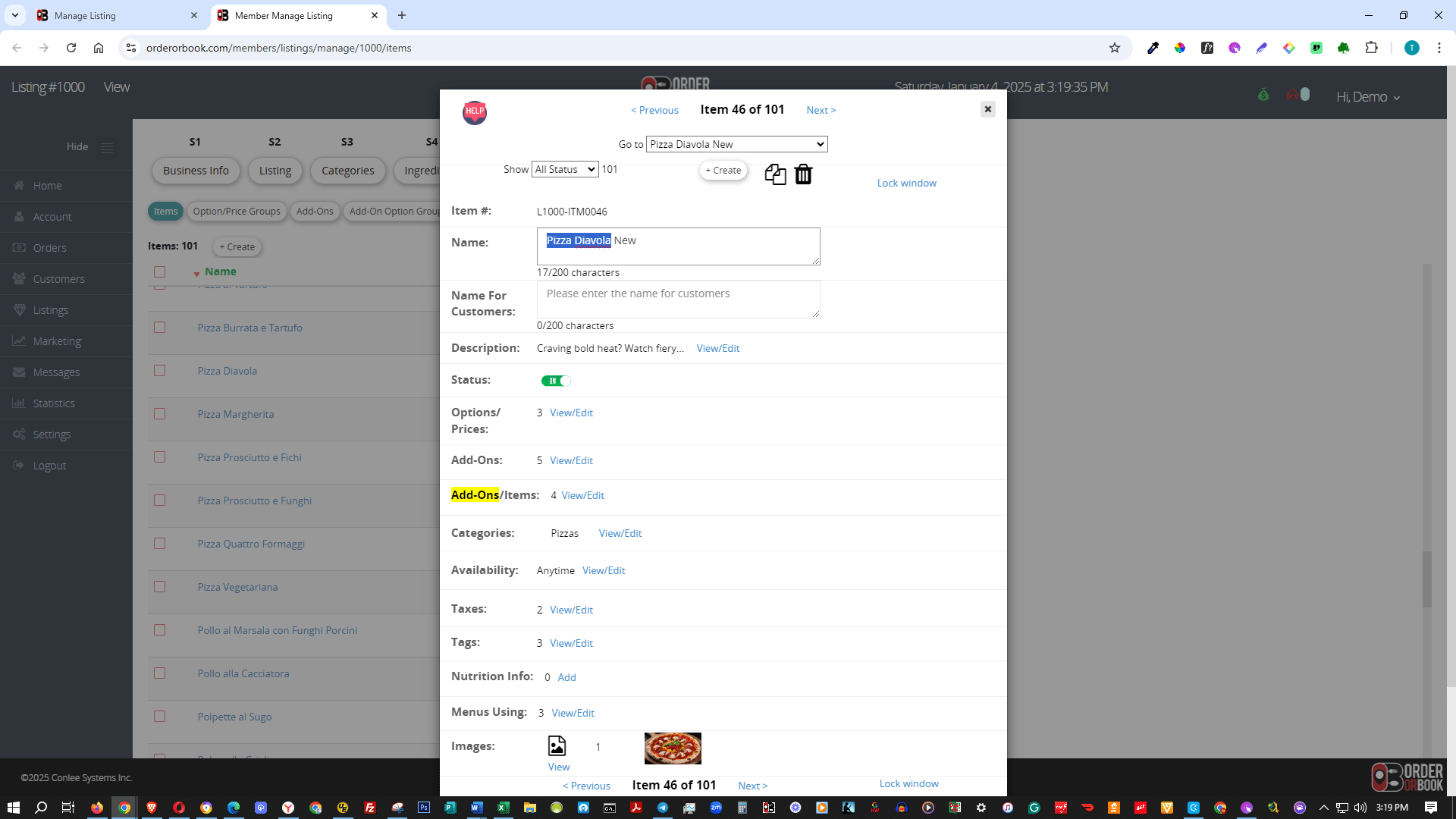
Enter the name to display to customers if it differs from the one above.
6

Click the Save button.

Click the **Save** button.
7

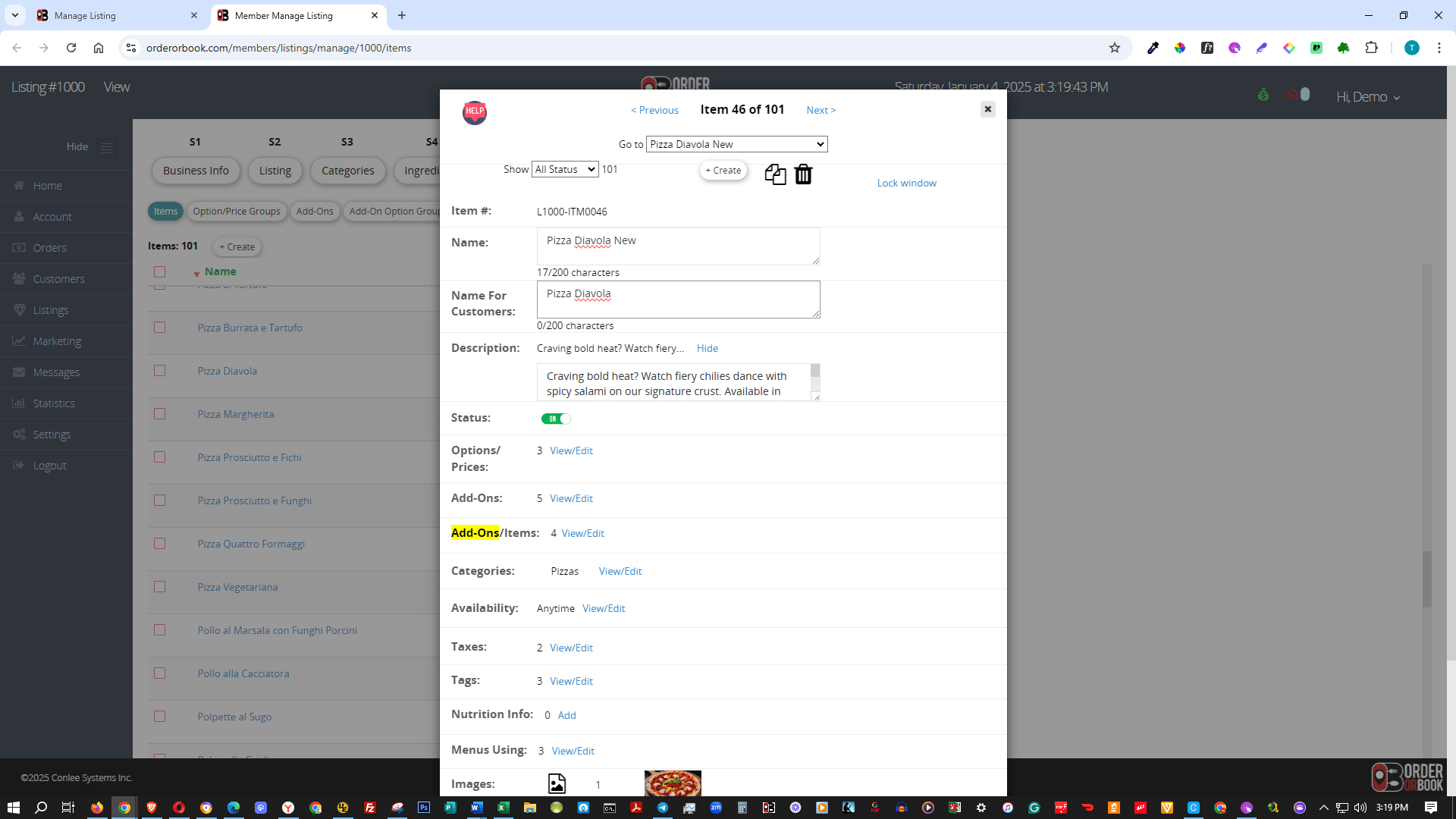
Click the view/edit link.

Click the **view/edit** link.
8

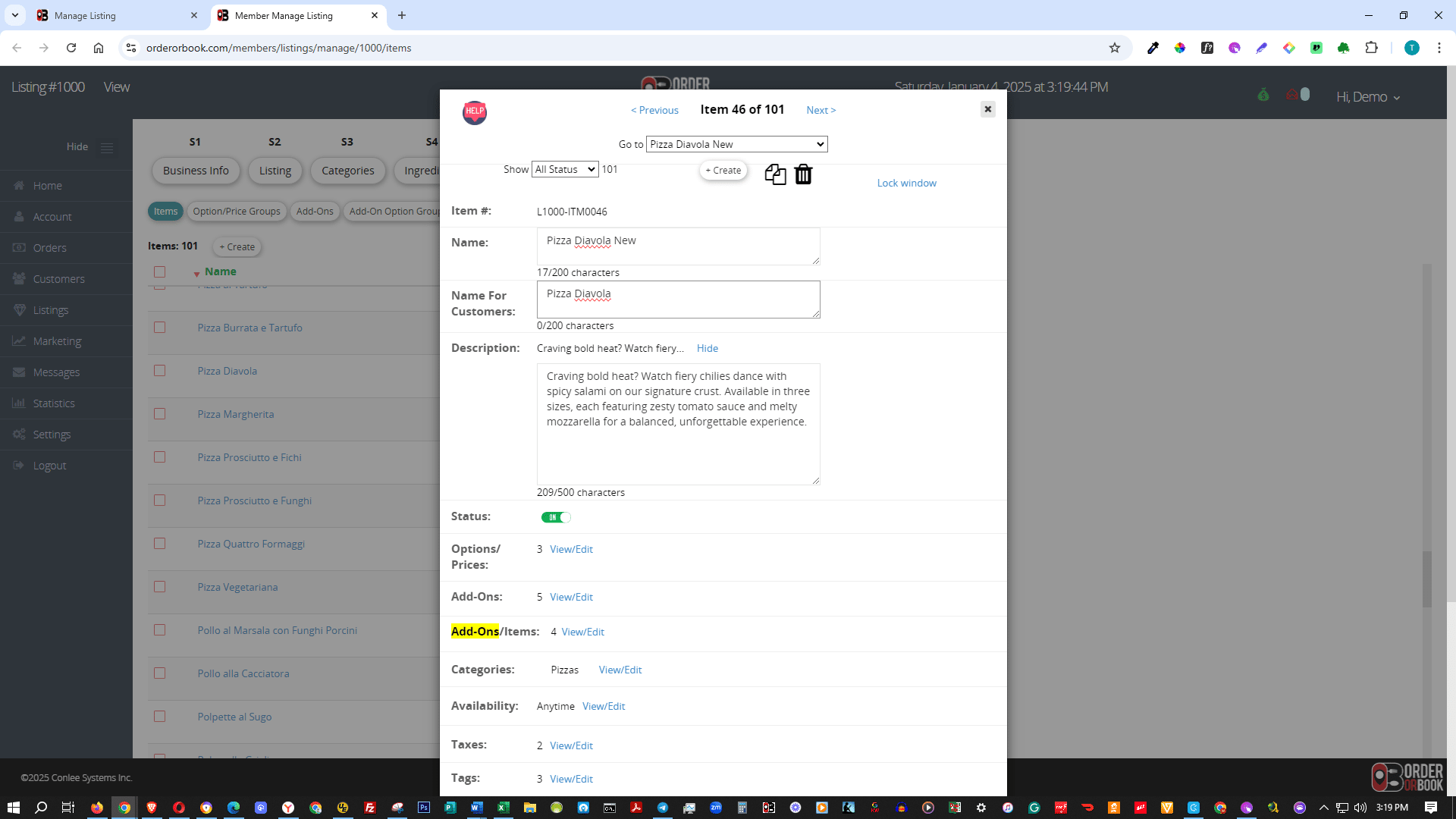
Expand the box to see all the text.

Expand the box to see all the text.
9

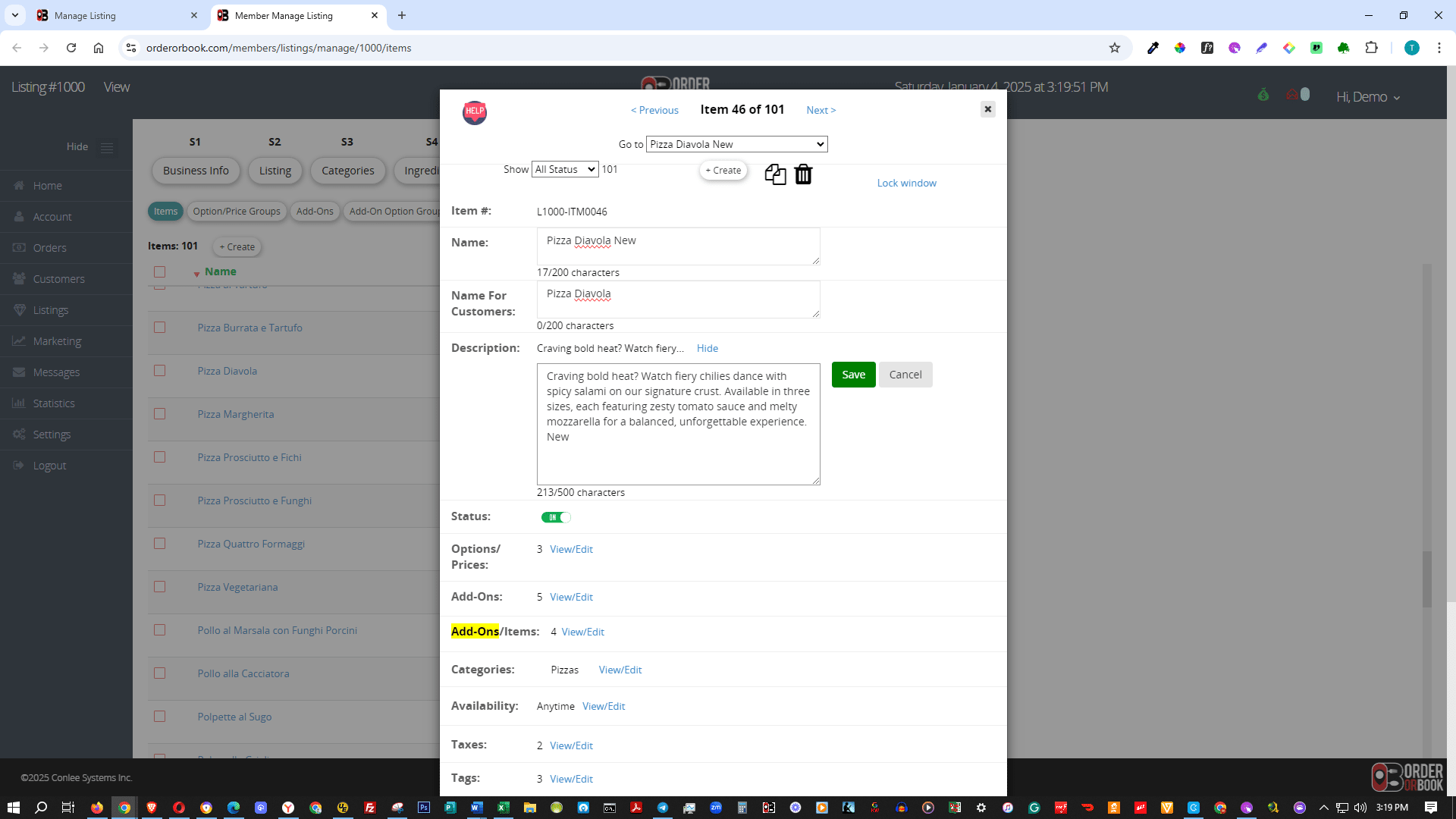
Edit the description.

Edit the description.
10

Click the Save button.

Click the Save button.
11

Click the view/edit link.

Click the **view/edit** link.
12

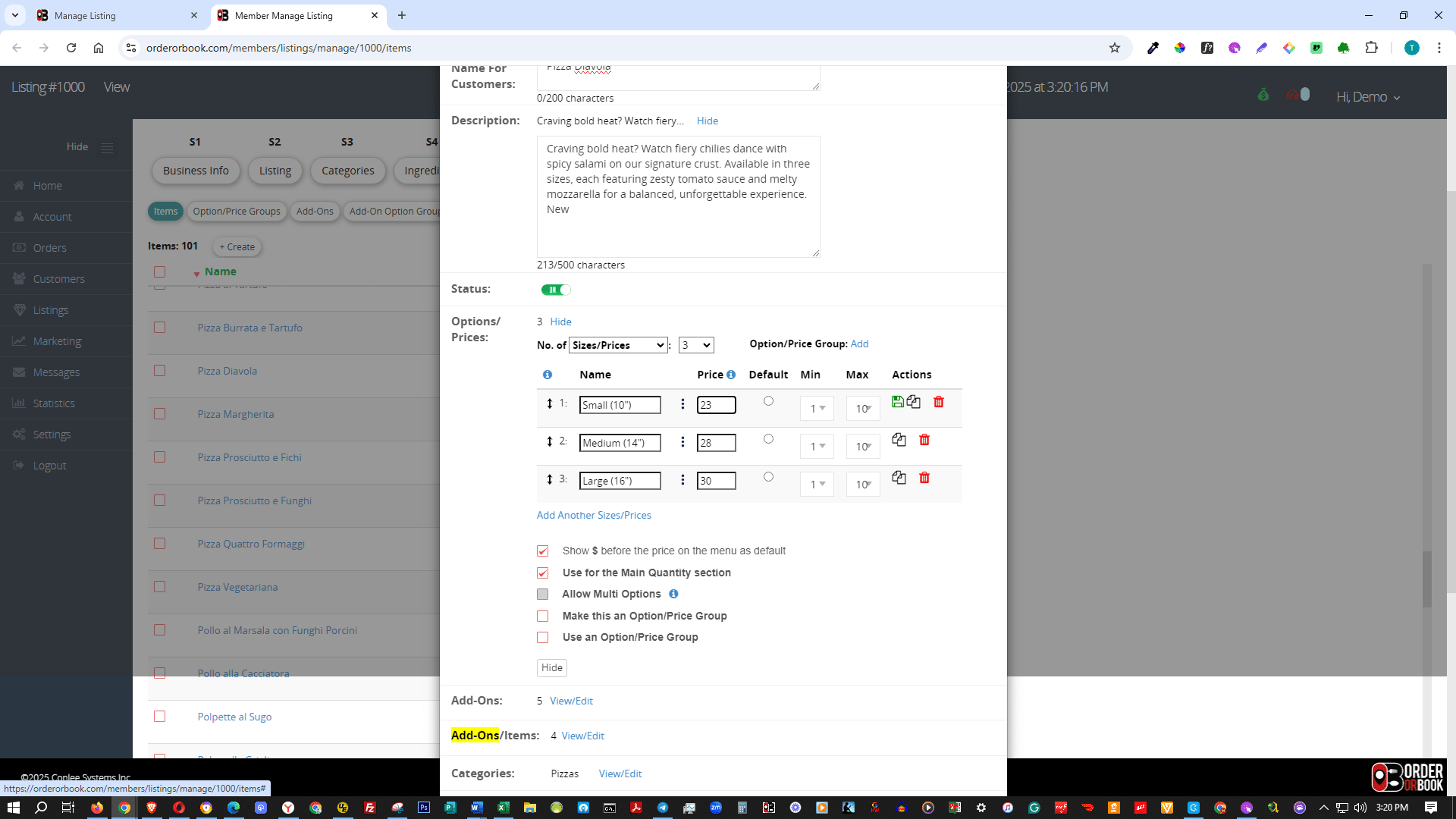
Select the price and enter whole numbers or numbers with up to two decimal places.
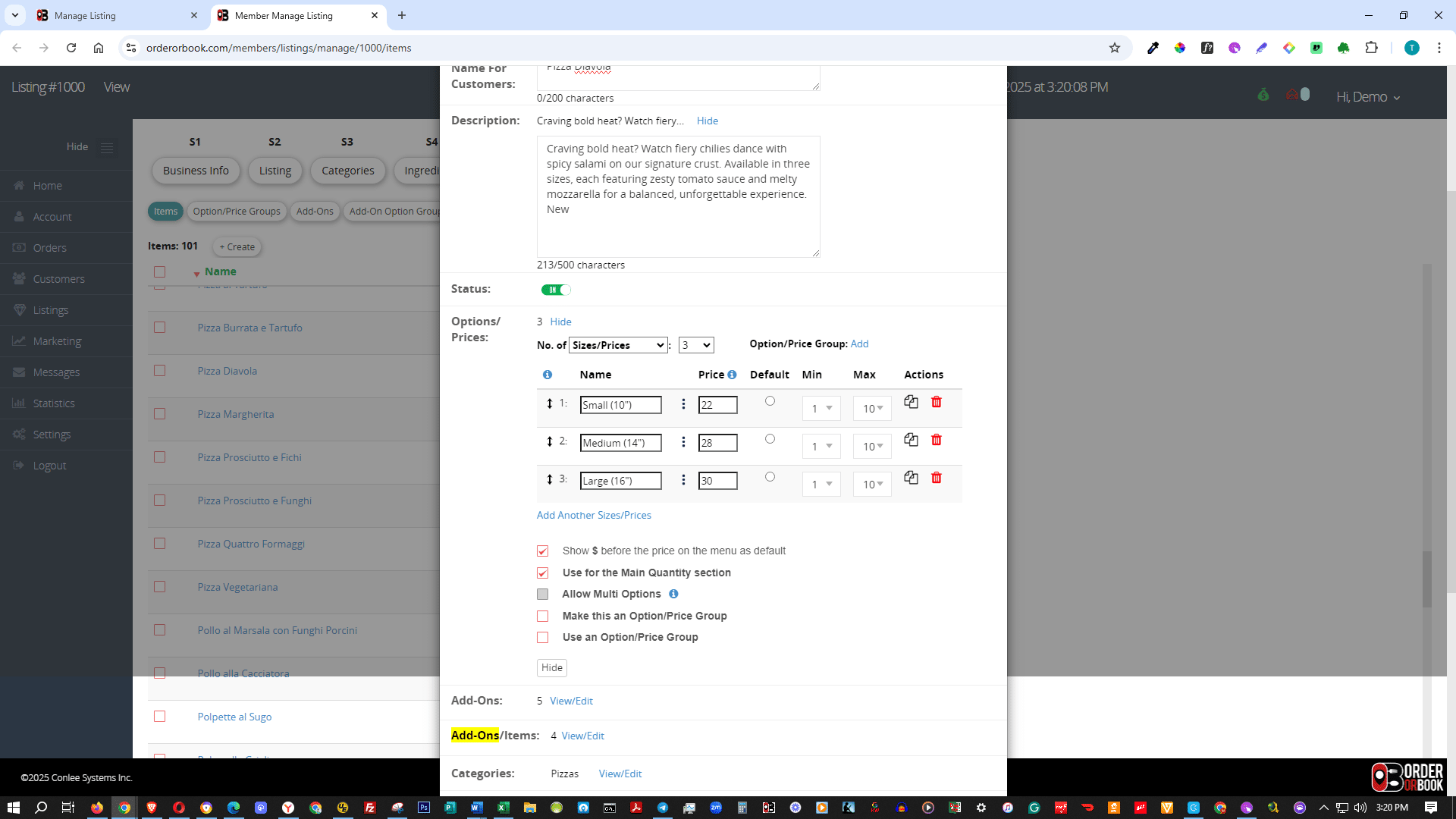
Select the price and enter whole numbers or numbers with up to two decimal places.
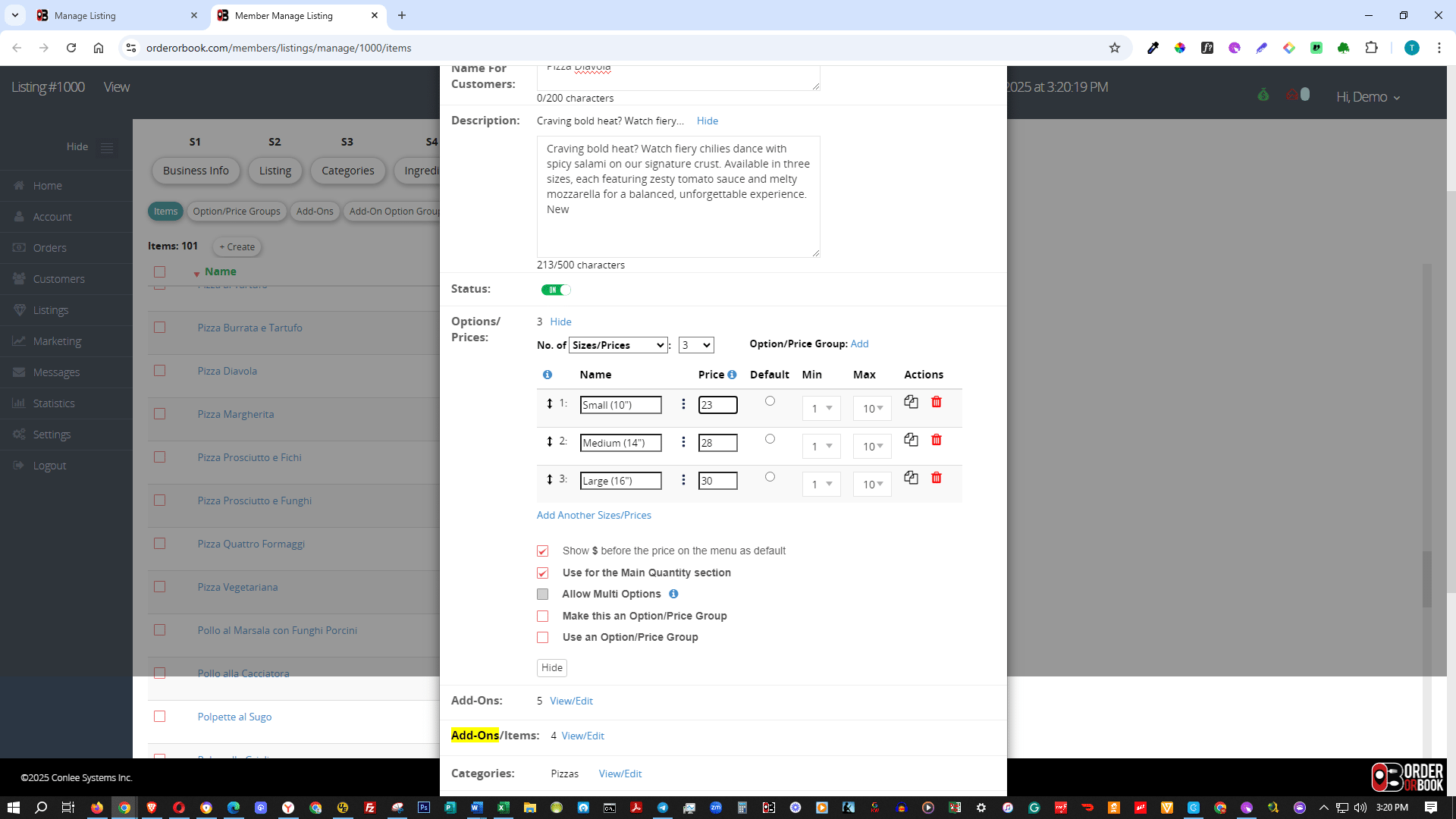
13

Click the Save icon.

Click the **Save** icon.
14

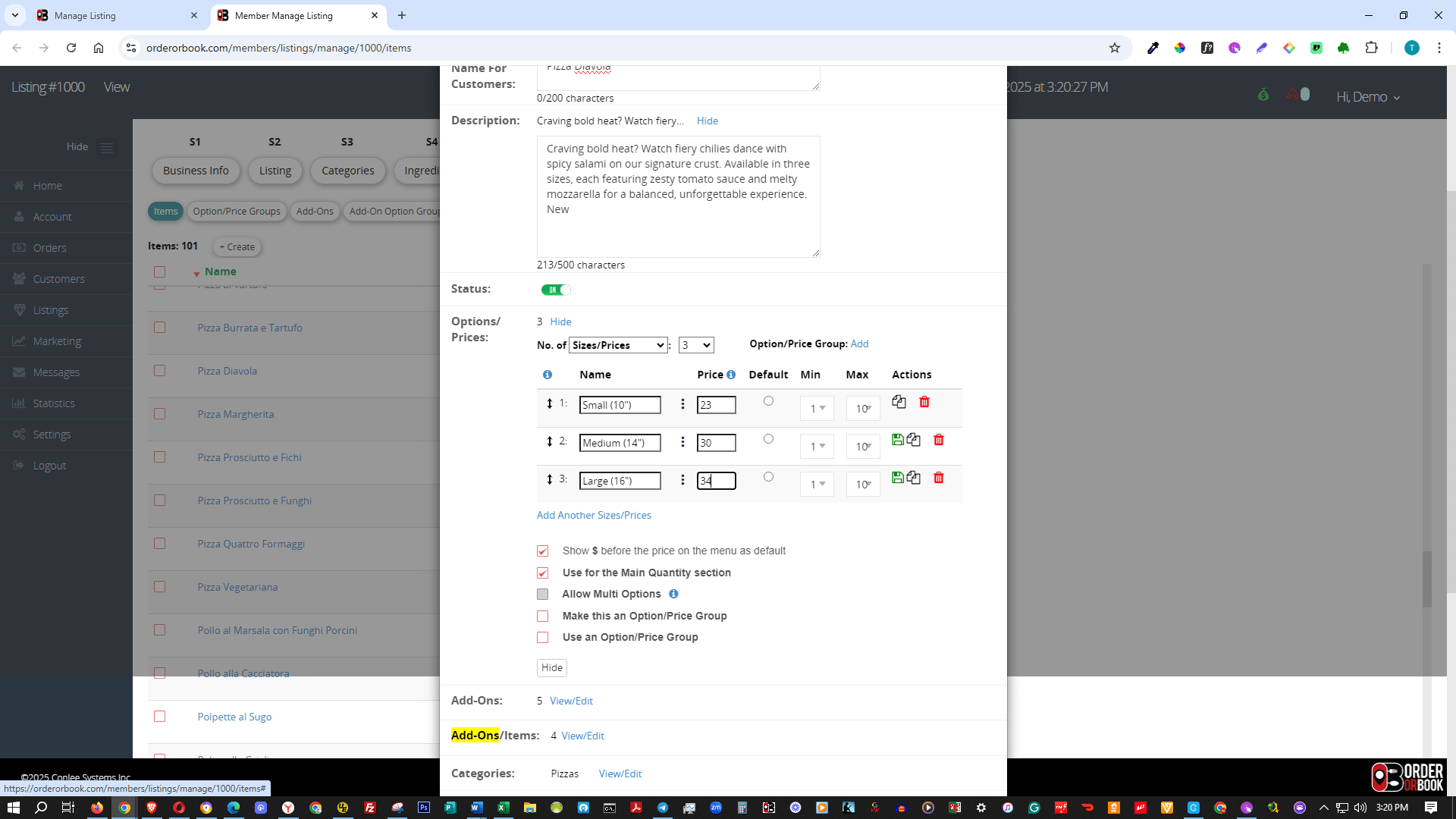
Select the price and enter whole numbers or numbers with up to two decimal places.

Select the price and enter whole numbers or numbers with up to two decimal places.
15

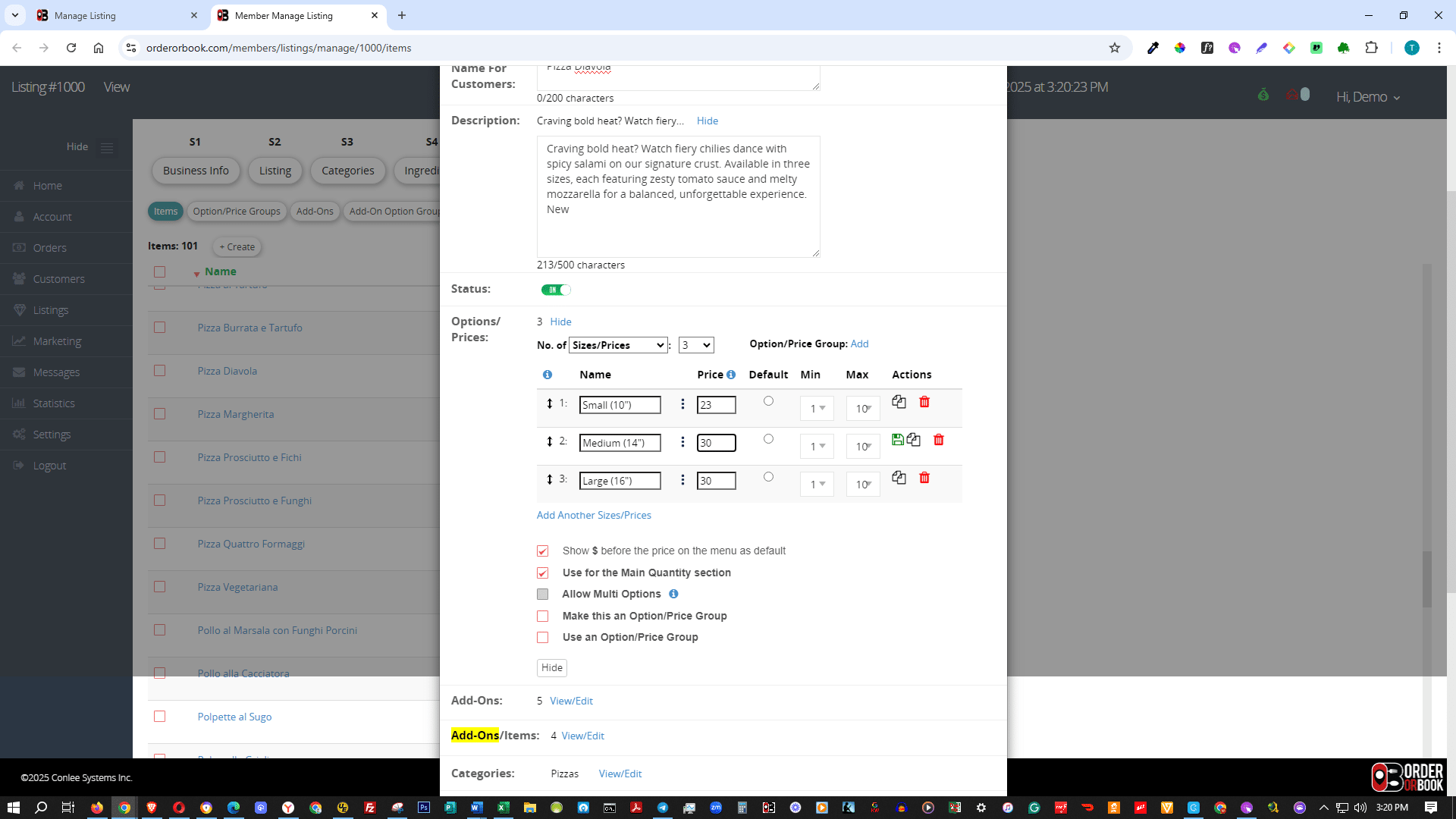
Select the price and enter whole numbers or numbers with up to two decimal places.

Select the price and enter whole numbers or numbers with up to two decimal places.
16

Click the Save icon.

Click the **Save** icon.
17

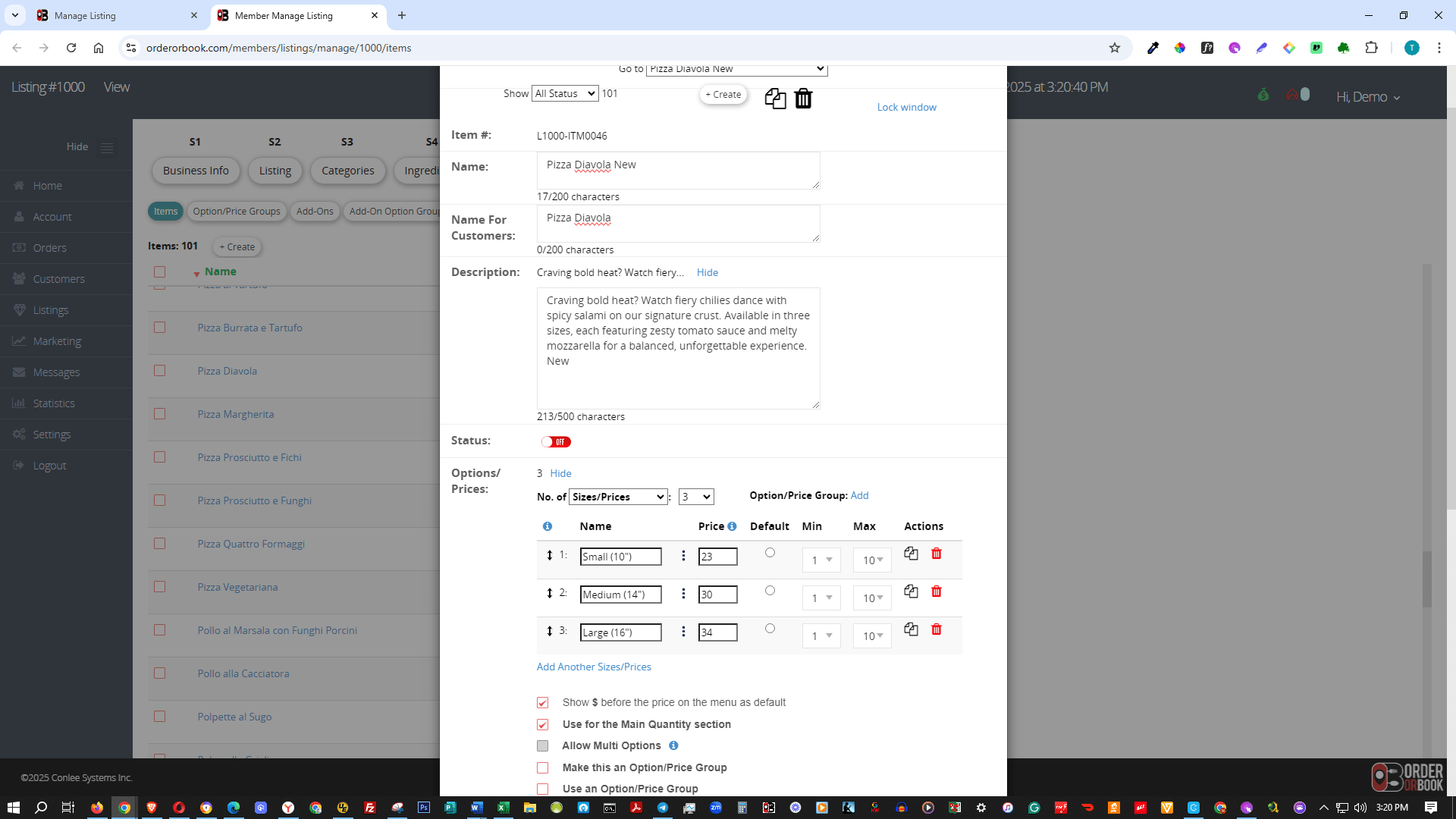
Select OFF to hide this item from the menu.
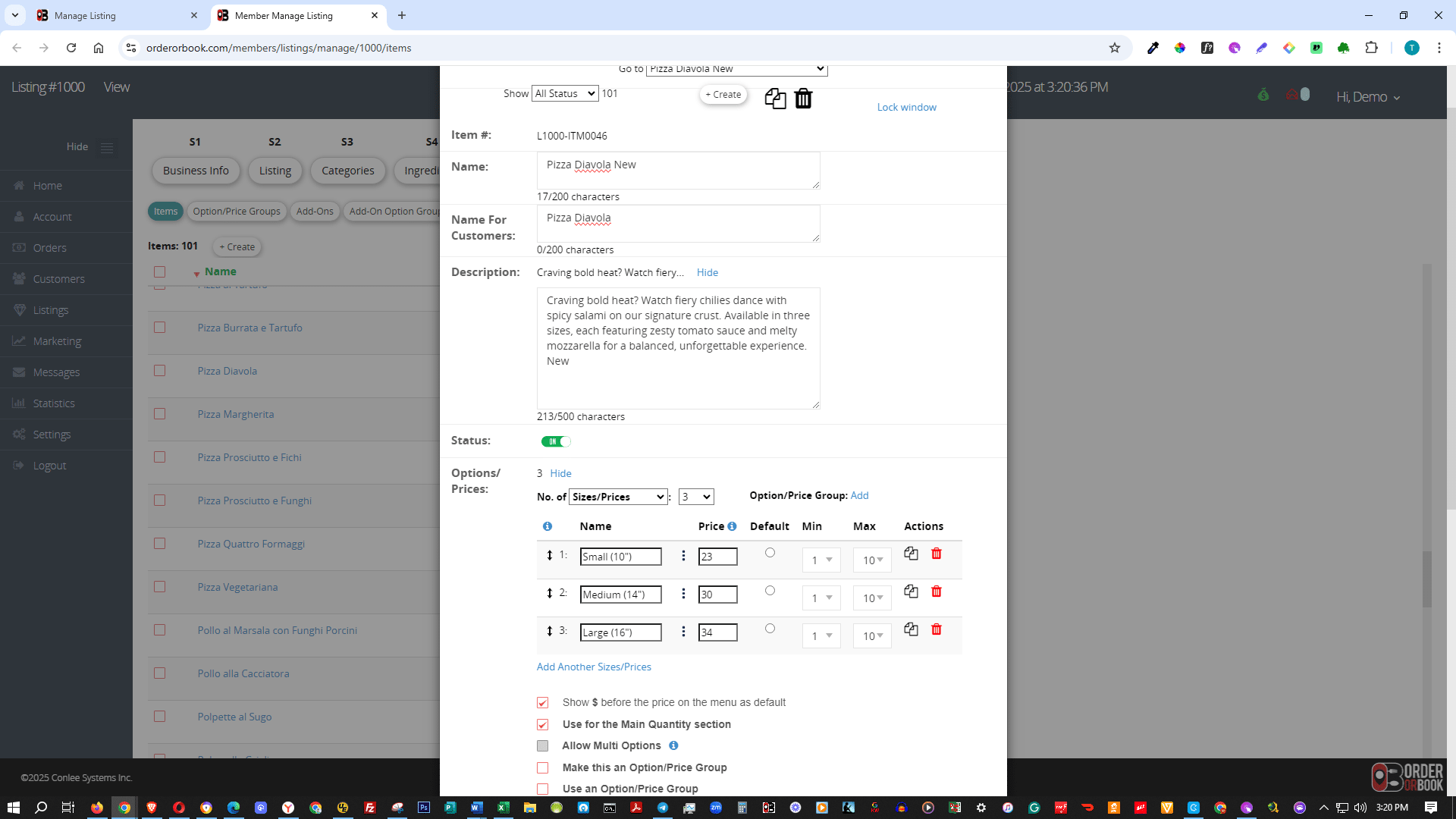
Select **OFF** to hide this item from the menu.
18

Select ON to show it on the menu.

Select **ON** to show it on the menu.